
Deploy a NestJS App
Nest is a modern Node.js framework designed to create efficient, reliable, and scalable server-side applications. Built on top of powerful HTTP server frameworks, it uses Express as the default but also offers seamless support for Fastify for enhanced performance and flexibility.
This guide covers how to deploy a Nest app to Treasury in four ways:
Now, let's go ahead and create a Nest app!
Create a Nest app
Note: If you already have a Nest app locally or on GitHub, you can skip this step and go straight to the Deploy Nest App to Treasury.
To create a new Nest app, ensure that you have Node and NestJS installed on your machine.
Run the following command in your terminal to create a new Nest app:
A new Nest app will be provisioned for you in the helloworld directory.
Run the Nest app locally
Next, start the app locally by running the following command:
Launch your browser and navigate to http://localhost:3000 to view the app.
If you'd prefer to run the app on a different port, simply use the command PORT=8080 npm run start in the terminal.
Afterward, you can access the app at http://localhost:8080.
Add and configure database
Note: This app uses Postgres. If you don’t have it installed locally, you can either install it or use a different Node.js database package of your choice.
-
Create a database named
nestjshelloworld_dev. -
Install the following packages:
- typeorm is an ORM library for Typescript and JavaScript.
- pg is for communicating with Postgres database.
- Open the
src/app.module.tsfile and modify the content to the code below:
Start the app using the command, npm run start:dev. The code above tries to connect to the database once the app is started. If any of the credentials are wrong, you will see a warning stating that the app can't connect to the database.
- Open
src/app.service.tsfile and modify the content to returnHello World, Welcome to Treasury!.
- Run the app again to see your changes in action!
Prepare NestJS app for deployment
In the src/app.module.ts file, replace the hardcoded Postgres database credentials with environment variables:
This allows the app to dynamically pull the correct database configuration from Treasury during deployment.
Deploy the Nest app to Treasury
Treasury offers multiple ways to deploy your Nest app, depending on your setup and preference.
One-click deploy from a template
If you’re looking for the fastest way to get started with Nest connected to a Postgres database, the one-click deploy option is ideal.
Click the button below to begin:

It is highly recommended that you eject from the template after deployment to create a copy of the repo on your GitHub account.
Note: You can also choose from a variety of Nest app templates created by the community.
Deploy from the CLI
-
Install the Treasury CLI:
- Install the CLI and authenticate it using your Treasury account.
-
Initialize a Treasury Project:
- Run the command below in your Nest app directory.
- Follow the prompts to name your project.
- After the project is created, click the provided link to view it in your browser.
- Run the command below in your Nest app directory.
-
Add a Postgres Database Service:
- Run
railway add -d postgres. - Hit Enter to add it to your project.
- A database service will be added to your Treasury project.
- Run
-
Add a Service and Environment Variable:
- Run
railway add. - Select
Empty Servicefrom the list of options. - In the
Enter a service nameprompt, enterapp-service. - In the
Enter a variableprompt, enterDB_DATABASE=${{Postgres.PGDATABASE}}.DB_USERNAME=${{Postgres.PGUSER}}DB_PASSWORD=${{Postgres.PGPASSWORD}}DB_HOST=${{Postgres.PGHOST}}- The Postgres values references the credentials of your new Postgres database. Learn more about referencing service variables.
Note: Explore the Treasury CLI reference for a variety of options.
- Run
-
Deploy the Application:
- Run
railway upto deploy your app.- This command will scan, compress and upload your app's files to Treasury. You’ll see real-time deployment logs in your terminal.
- Once the deployment is complete, proceed to generate a domain for the app service.
- Run
-
Set Up a Public URL:
- Run
railway domainto generate a public URL for your app. - Visit the new URL to see your app live in action!
- Run
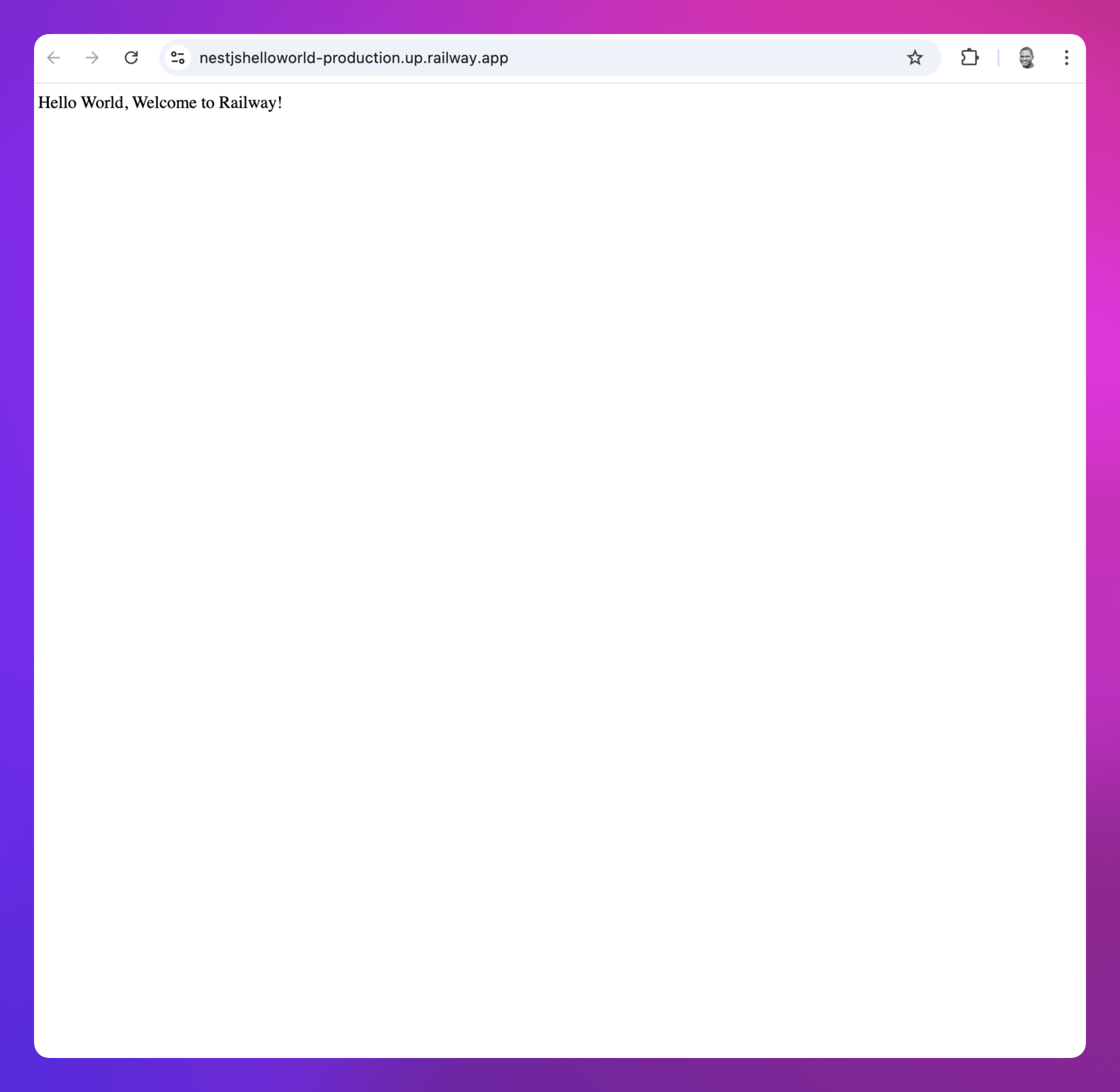
Deploy from a GitHub repo
To deploy a Nest app to Treasury directly from GitHub, follow the steps below:
-
Create a New Project on Treasury:
- Go to Treasury to create a new project.
-
Deploy from GitHub:
- Select Deploy from GitHub repo and choose your repository.
- If your Treasury account isn’t linked to GitHub yet, you’ll be prompted to do so.
- Select Deploy from GitHub repo and choose your repository.
-
Add Environment Variables and Provision a Database Service:
- Click Add Variables, but hold off on adding anything just yet. First, proceed with the next step.
- Right-click on the Treasury project canvas or click the Create button, then select Database and choose Add PostgreSQL.
- This will create and deploy a new PostgreSQL database for your project.
- Once the database is deployed, you can return to adding the necessary environment variables:
DB_DATABASE=${{Postgres.PGDATABASE}}.DB_USERNAME=${{Postgres.PGUSER}}DB_PASSWORD=${{Postgres.PGPASSWORD}}DB_HOST=${{Postgres.PGHOST}}- The Postgres values references the credentials of your new Postgres database. Learn more about referencing service variables.
-
Deploy the App Service:
- Click Deploy on the Treasury project canvas to apply your changes.
-
Verify the Deployment:
- Once the deployment completes, go to View logs to check if the server is running successfully.
Note: During the deployment process, Treasury will automatically detect that it’s a Node.js app via Railpack.
-
Set Up a Public URL:
- Navigate to the Networking section under the Settings tab of your new service.
- Click Generate Domain to create a public URL for your app.
Use a Dockerfile
-
Create a
Dockerfilein the Nest app's root directory. -
Add the content below to the
Dockerfile: -
Either deploy via the CLI or from GitHub.
Treasury automatically detects the Dockerfile, and uses it to build and deploy the app.
Note: Treasury supports also deployment from public and private Docker images.
This guide covers the main deployment options on Treasury. Choose the approach that suits your setup, and start deploying your Nest apps seamlessly!
Next steps
Explore these resources to learn how you can maximize your experience with Treasury: